

Keep your brand content close, whatever you’re working on.
Open Pickit alongside your work. Find images, logos and other brand material in a separate desktop app, then bring the right asset into the task at hand.
Illustrative desktop mockup with sample content. Find an image in the separate Pickit app, then drag it into a Canva-style design and drop it in place.


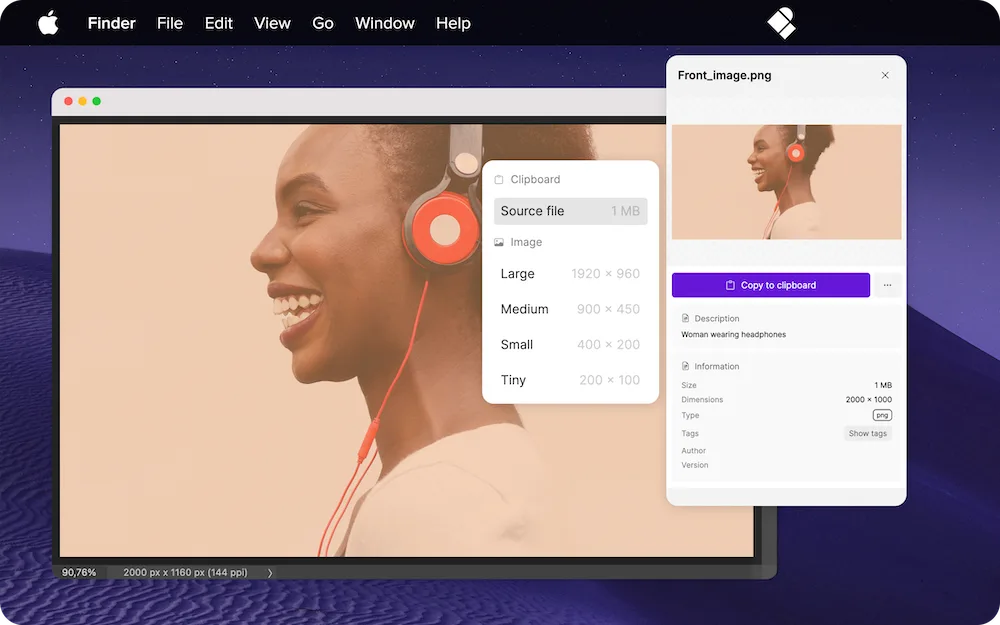
One library alongside your applications.
Keep company content within reach.
Search and browse the library your team maintains. Pickit is a separate window for Windows and macOS, keeping the same company content within reach as you move between applications.
Bring the image into your work.
Drag and drop or copy and paste where the file type and destination application support it. Try the formats and applications your team uses when evaluating the desktop app.



A few useful answers.
Is this a native Adobe or Canva add-in?
The desktop app is a separate Pickit window. It works alongside other applications; how an asset is placed depends on the application and file type.
Does a placed image stay linked to Pickit?
This workflow transfers the selected asset. A later change to the source needs a separate update to the design; the transfer does not establish a persistent link.
Where do we start with installation?
Download Pickit for Windows or macOS from the Download page, then sign in with a Pickit account that can access your company content. The installation guide in the Help Center walks you through the setup.
Try it with the work your team does.
Bring an example task. We’ll show how the desktop app can put your content within reach.