This allows users to preview the slides within a presentation and, when enabled, insert individual slides without having to download or work with the entire presentation.
Upload a PowerPoint and generate slides
- Go to app.pickit.com, log in to your account, and switch to Admin Mode.
- Navigate to the Documents library in the left-side menu.
- Upload your .pptx file. Once the upload is complete, Pickit will automatically start analyzing the presentation and generating its slides.
Note: Slide generation may take some time to complete, particularly for larger or more complex PowerPoint files.
Note: PowerPoint slide generation is only supported for .pptx files. Other PowerPoint file types, such as .potx, will not generate individual slides in Pickit.
Manage the generated slides
Once your presentation has been uploaded, click on the .pptx file and select Settings (the cog-wheel icon) from the right-side menu.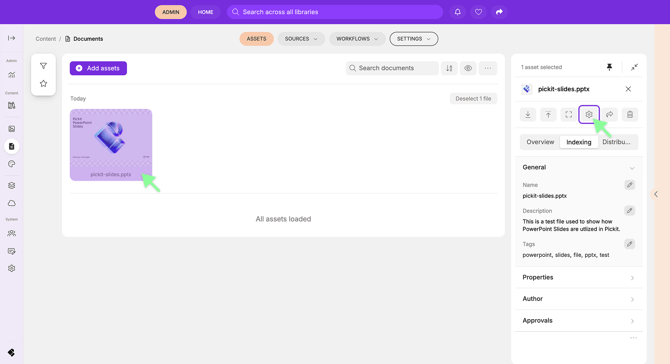
Select Slides to view and manage the slides generated from the presentation.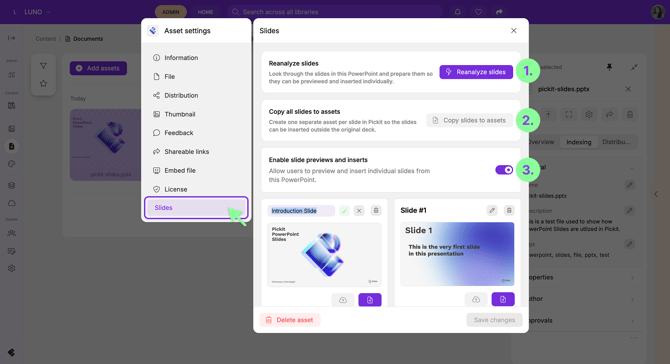
From here, you have several options:
-
Reanalyze slides
Analyzes the PowerPoint again and prepares its slides so they can be previewed and inserted individually. This can be useful if slide generation didn't complete successfully or appears to be taking too long.→ My PowerPoint Slides aren't generating – what should I do?
-
Copy all slides to Assets
Copies each slide to the Assets library as a separate file, making it easy to distribute single slides into collections or folders. - Enable slide previews and inserts
Makes the individual slides available to end users when they preview the PowerPoint document. Users can then browse and insert individual slides from the presentation.
Manage individual slides
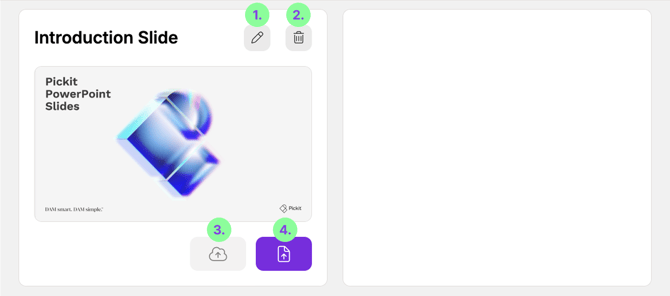
You'll also see a thumbnail of each generated slide. From here, you can manage slides individually, including:
- Change the name of the slide
- Delete the slide
- Replace the slide thumbnail
- Copy the slide to Assets, creating it as a separate file in your Pickit library.
This gives you control over both the complete PowerPoint presentation and how its individual slides are presented and made available to your users.