
1. Go to Pickit and switch to Admin Mode
2. Upload your presentation to the Documents library
-
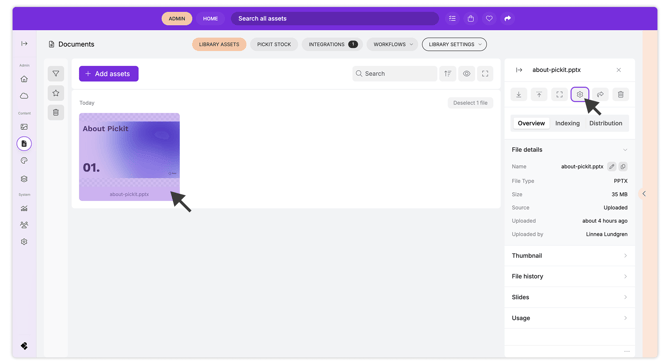
Open the Documents library.
-
Click Upload and select your PowerPoint file (.pptx).
-
Pickit will automatically begin processing the file once uploaded.
3. Open the document settings
-
Click on the file you just uploaded.
-
In the right-hand menu, open Settings and navigate to the Slides tab.
4. Review and split your slides
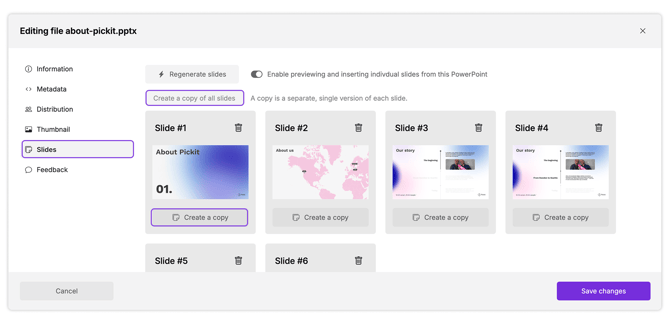
In the Slides view, you’ll see a preview of all the slides in the presentation. Each slide is displayed as its own asset-like preview. You can now choose between two options:
Option A: Create copy of all slides
This will split the entire presentation into individual slide files and add them to your library. You can then organize them into the appropriate Collections.
Option B: Create copies of selected slides
-
Click on any individual slide preview.
-
Select Create a copy to split only that specific slide into a standalone file.
Troubleshooting
-
Supported formats: Slides only work with .pptx files.
-
Processing issues:
If the file fails to process, open the document settings and click Regenerate slides to run the process again. -
Custom thumbnails:
You can upload custom thumbnails to your individual slides. Hover over a slide preview in the Settings pane to add a custom thumbnail.