1. Enter Admin Mode
-
Log in to Pickit.
-
Switch to Admin Mode from the main navigation.
2. Locate the File You Want to Share
Navigate to the library where your file is stored, and find the asset you want to share.
3. Open the Sharing Options
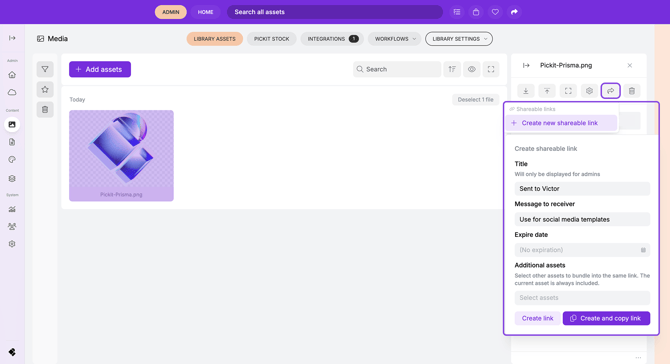
Click on the file to open the details panel on the right-hand side. Select the Share button (represented by an arrow icon). You can also right-click on the file to open the Shareable link settings.
4. Create a New Shareable Link
In the sharing dialog, click Create new shareable link.
5. Fill in Optional Link Details
You can customize your link with the following fields:
-
Title
Shown only to admins. Use this to keep track of who the file was shared with or the purpose of the link. -
Message to the receiver
Add an optional message that the recipient will see when opening the link. -
Expiry date
Set a date when the link should automatically expire. -
Additional assets
Include more files if you'd like the link to contain multiple assets.
6. Create and Copy the Link
Click Create and copy link to share it with your intended recipient.
You can also right click on the file to open the shareable link settings: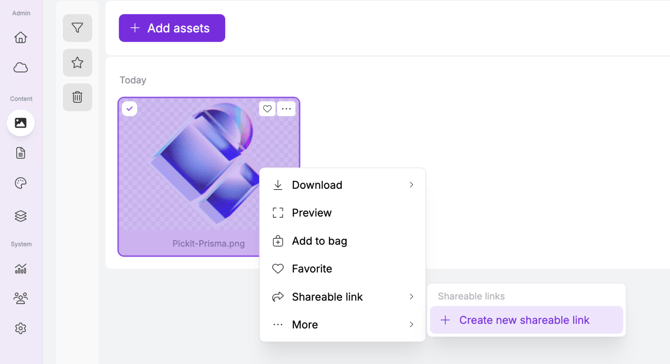
View all your shareable links
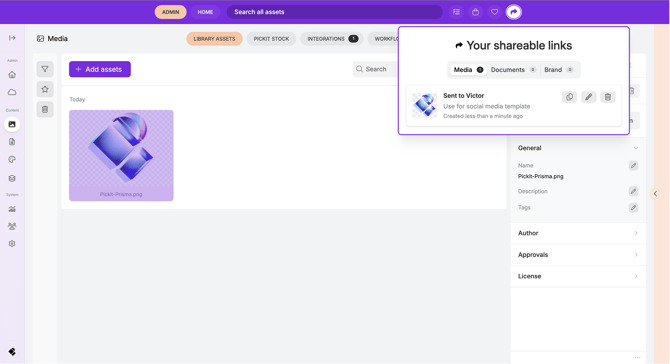
At the top of the page, next to the Search field and your Favorites, you can access an overview of all your active shareable links.
Click the arrow icon to view, manage, or remove existing links whenever needed.