
When removing files or collections in Pickit, you have two options:
- Move to Trash – The item is removed from your library but can be restored later.
- Delete permanently – The item is permanently removed and cannot be recovered.
Note: Permanently deleted items cannot be restored.
Restore deleted files
Files moved to the Trash can be restored from both the Media Library and Documents Library.
- Open the Media Library or Documents Library.
- In the left-hand navigation, under Filters and Shortcuts, select Trash.
- Select the file(s) you want to restore.
- Click Restore to return them to your library.
You can also permanently delete files from the Trash if they are no longer needed.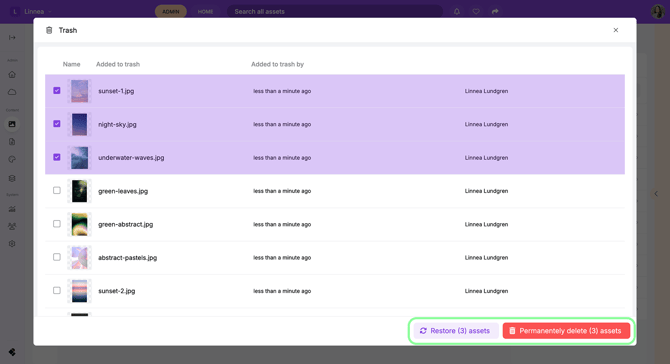
Restore deleted collections
Collections moved to the Trash can be restored from the Collections panel.
- Open the Collections panel.
- Click the Trash icon at the top of the panel.
- Select the collection(s) you want to restore.
- Click the Restore icon to return them to your collection view.
You can also permanently delete collections from the Trash if they are no longer needed.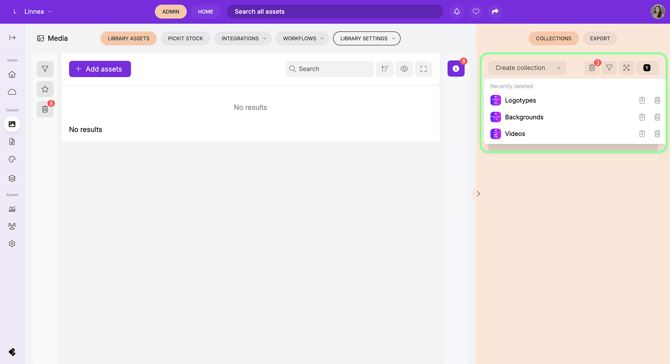
Move files or collections to the Trash
Files
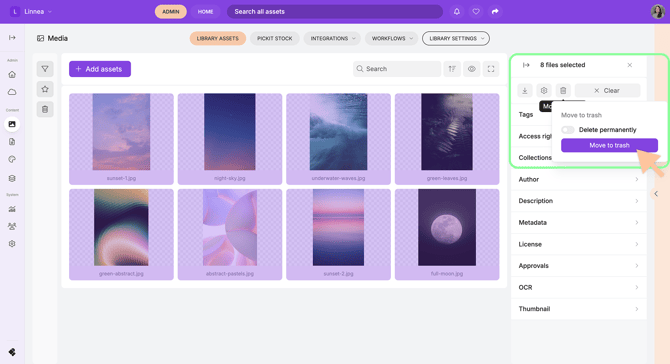
- Select one or more files in either the Media Library or Documents Library.
- Click the trash icon in the right-hand side panel.
- Select Move to Trash.
Collections
- Open the Collections panel.
- Hover over the collection you want to remove and click the trash icon.
- Select Move to Trash.
Note: Permanently deleted items cannot be restored. To permanently delete a file or collection, enable Delete permanently and type Yes to confirm.