
1. Go to Admin Mode
Go to app.pickit.com, log in to your Pickit account, and switch to Admin Mode.
2. Open the collection settings
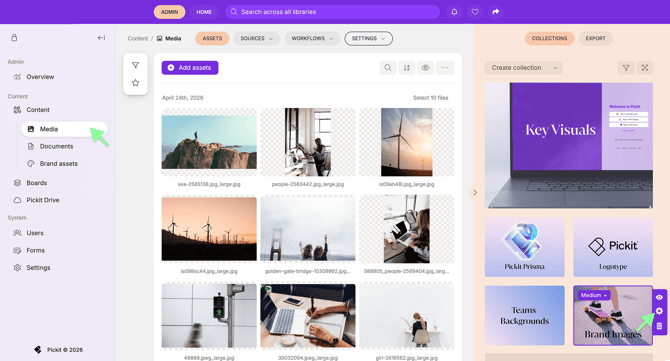
In Media or Documents, open the collection pane (orange-colored field to the far right) and find the collection you want to add a Contributor tom and open the collection's Settings.
3. Go to Sharing
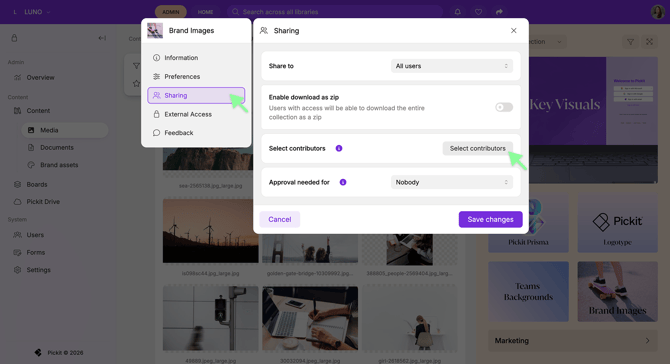
In the collection settings, go to Sharing and click Select Contributors.
4. Add a Contributor
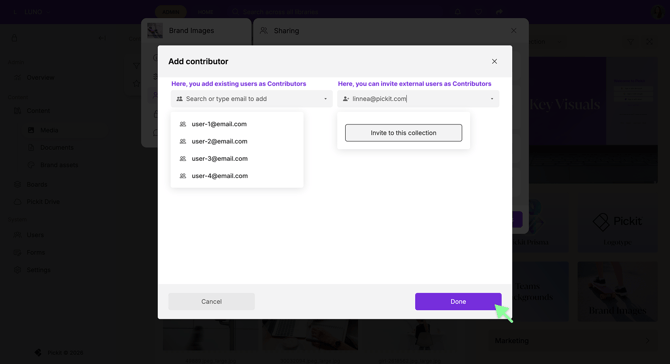
Here, you can either select an existing Pickit user from your Users list or invite a new Contributor by entering their email address.
5. Send the invitation
Click Done to finish and the email invitation will be sent to the Contributor.
What happens next?
The Contributor will receive an email invitation with a direct link to the collection.
If they don't already have a Pickit account, they'll be asked to create one using the email address they were invited with. Once they've created their account and logged in, they'll be able to access the collection and start contributing content.
Didn't receive the invitation email?
If the Contributor can't find their invitation, ask them to check their spam or junk folder, as well as other inbox categories such as Promotions. They can also search their inbox for an email from noreply@pickit.com.
If they still can't find the email, no worries! They can go directly to app.pickit.com and create an account or log in using the email address that was invited. Once logged in, a message will appear letting them know they've been invited to a collection, and they can go ahead and upload to the collection.
Are you a Contributor?
Learn more about getting started and working with your assigned collections:
→ I'm invited as a Contributor in Pickit, what should I do?