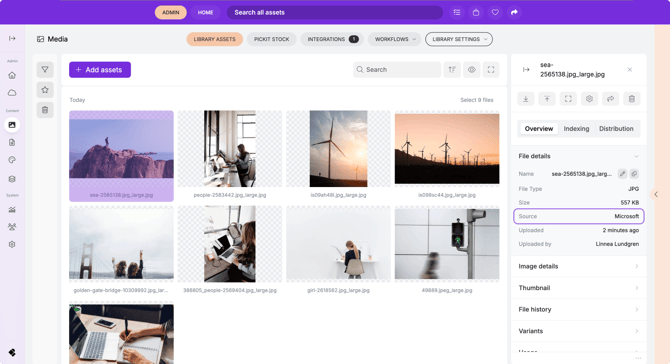
1. Go to the Media or Documents library
Choose the library where you want the imported files to be stored.
2. Click on Integrations > Microsoft at the top of the page.
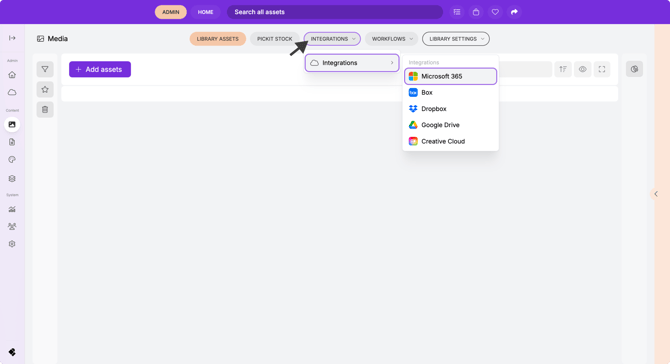
3. Log in using your Microsoft account to authenticate the connection.
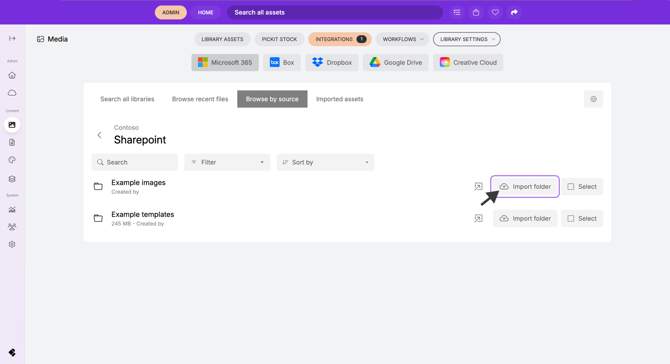
4. Select your source
Choose where your files are located:
-
SharePoint
-
Teams
-
OneDrive
Configure your import settings and click Import.
Library Settings
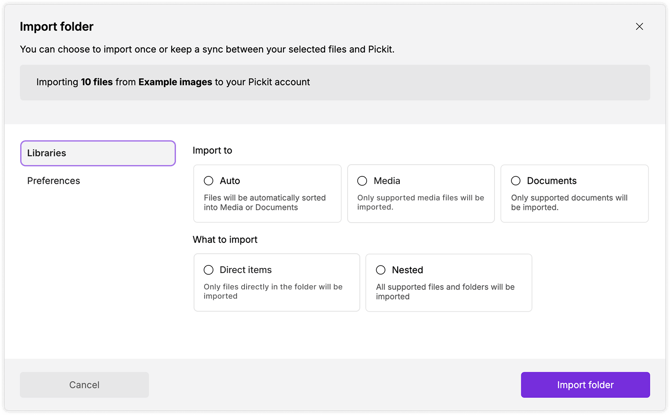
These settings define what will be imported and where the assets will go.
Import to
Choose the destination within Pickit:
-
Auto – Pickit will automatically determine the appropriate library based on the file type.
-
Media – Files will be imported into the Media library.
-
Documents – Files will be imported into the Documents library.
What to import
-
Direct items – Only imports the files directly inside the selected folder. Subfolders will not be imported.
-
Nested – Imports everything within the selected folder, including all subfolders and their contents.
Preferences
Use preferences to control how the import behaves over time.
Import to
Choose the exact location for your imported files:
-
Library – Files will be placed directly into the selected media or document library.
-
Specific collection – Files will be added to a collection of your choice.
Occurrence
Define how often the import job should run:
-
Once – The import will run a single time automatically but can be manually triggered again later.
-
Daily – The import job will automatically run every 8 hours, as long as the Microsoft connection remains active.
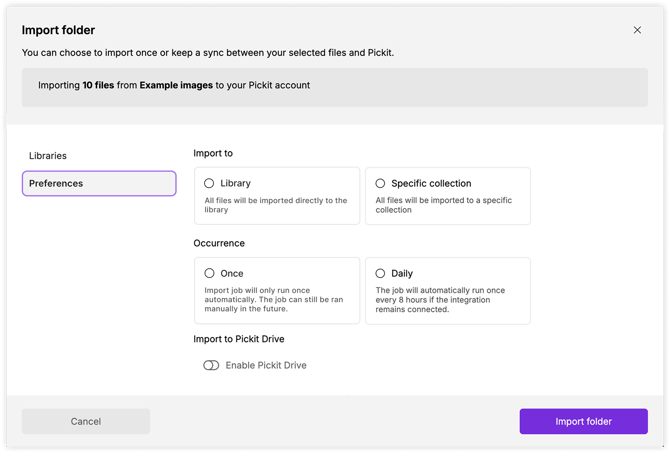
Start the Import
When all settings are configured, click Import folder to begin the import process.