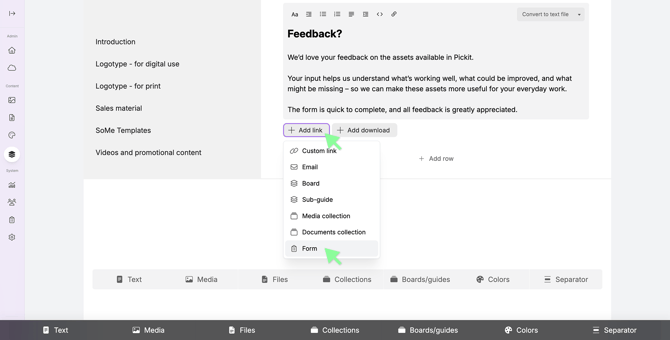
Where Forms can be displayed
Forms can be displayed in different locations depending on how they’re configured:
-
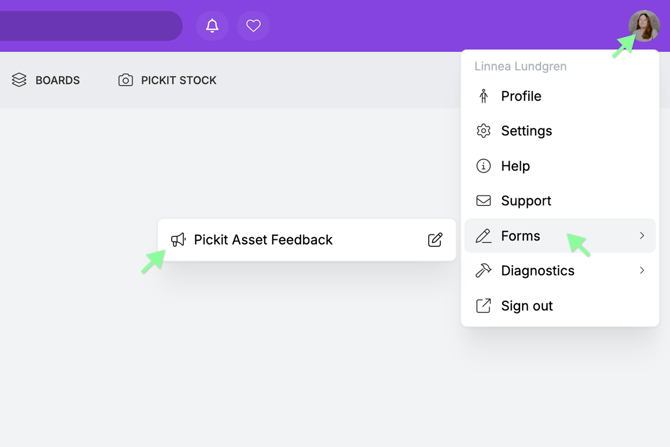
Account details (top-right corner in the end-user view)
-
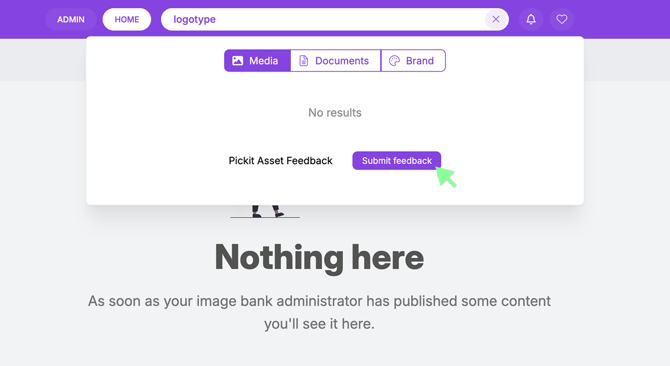
The “No search results” screen, making it easy for users to request content related to their search
-
As a button in Brands or Boards, enabling contextual requests where users are already working
How to set up Forms in Pickit
1. Go to Admin Mode in Pickit and navigate to Forms in the left-side toolbar.
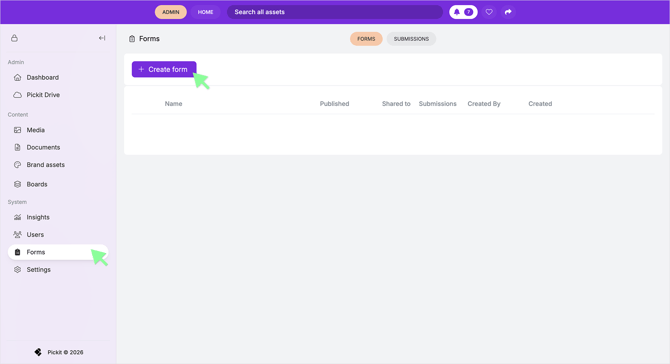
2. Here you get two options:
-
Get a Form suggestion by describing what the form should contain and look like
-
Start from an empty form and build it yourself completely
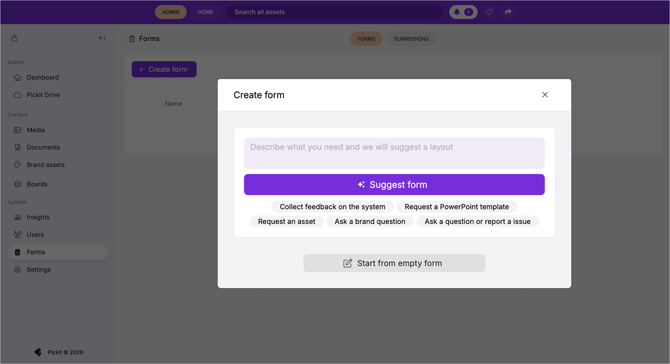
3. We will start with an empty form.
4. Enter details such as a form name, select an icon for the form, add a intro text for the form (title and description)
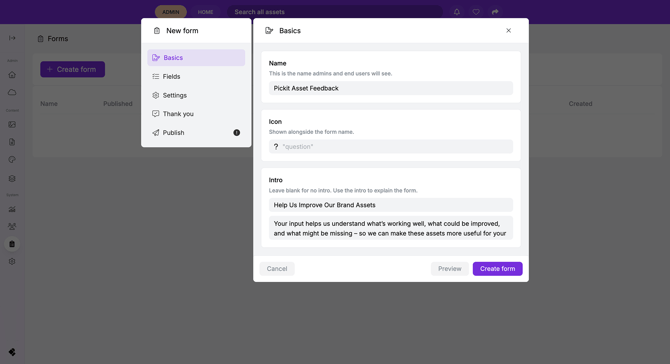
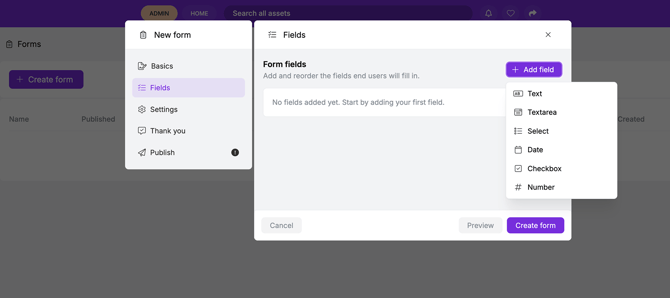
5. Continue to Fields to start building your form by adding field to it, you can select between:
-
Text - Add a row of text to the form
-
Text area - Let users type longer comments
-
Select - Add a question with predefined answers to select from
-
Date - Allow users to select a date
-
Checkbox - Let users toggle an option on or off
-
Number - Allow users to enter a numeric value
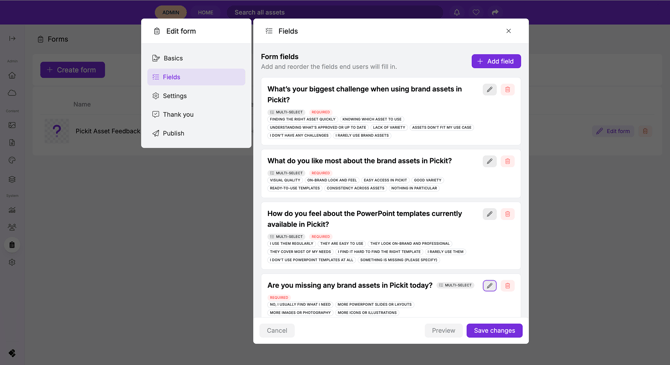
An example of how it can look:
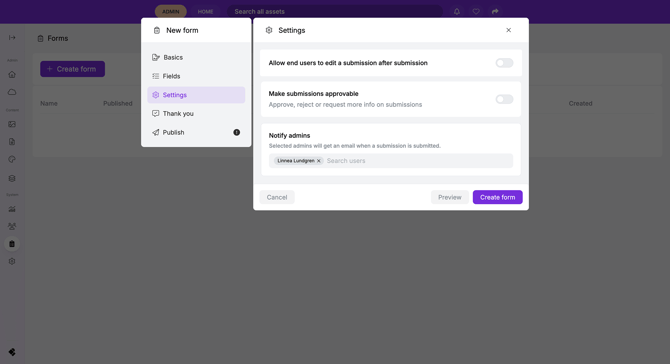
6. When you’re done formatting your form, go to Settings to configure:
-
Allow end users to edit a submission after submission
Users can go back to the form to edit their submission -
Make submissions approvable
Submissions will be enrolled in an approval flow in Pickit -
Notify admins
Select which admins should be notified (via email) when a form submission is entered.
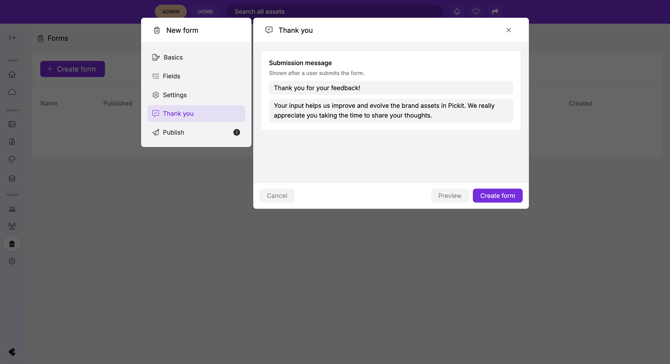
7. Go to Thank you to create a confirmation message shown after submission.
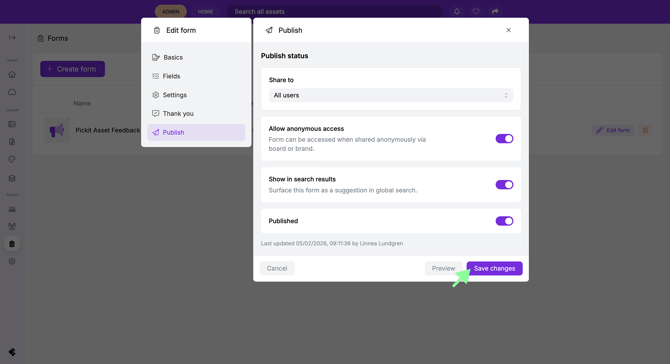
8. Finally, go to Publish settings:
-
Share to - Choose who the form should be visible to
-
Allow anonymous access - Enables access from Boards and Guides shared with non-logged-in users
-
Show in search results - Displays the form when no search results are found
-
Published - Toggle this on to make the form live
👉 Don’t forget to click Save changes!
What happens after a form has been submitted?
When a user submits a form:
-
You’ll receive an email notification
-
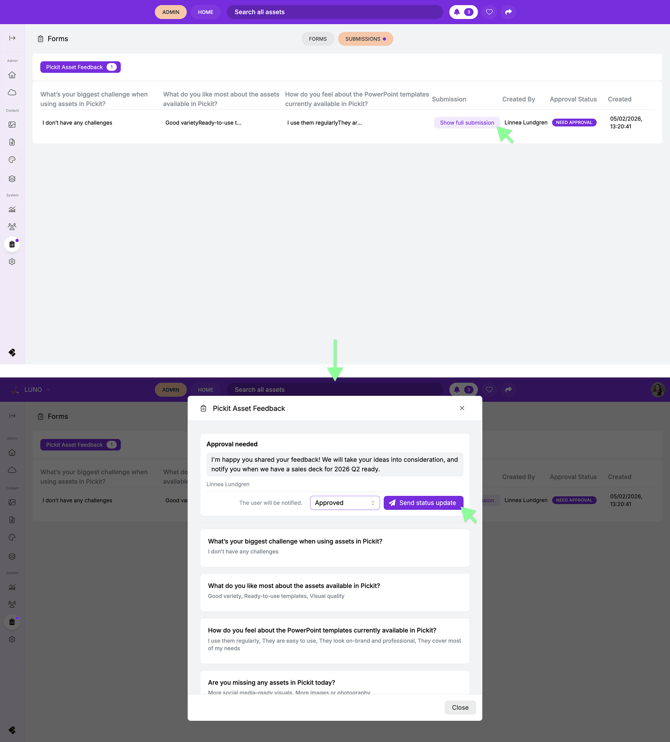
You can view all submissions by going to Forms → Submissions in Pickit
Approvals on submissions
Approvals is a workflow in Pickit that allows admins to review content before it’s published. Form submissions can also be enrolled in this approval workflow.
In Forms → Submissions, admins can:
-
View all submitted forms
-
Review each submission
-
Set the status to Approved, Needs more info, or Rejected
-
Send feedback to the user who submitted the form
When you update the status and add a message, the user is notified both by email and in-app (on the web).
Examples of where the Form can be found in Pickit:
Under the user's profile found in the top right corner in Pickit:
When a search comes back with zero results:
A form can be added as a button in Boards and Brand: