
Create a cropping format
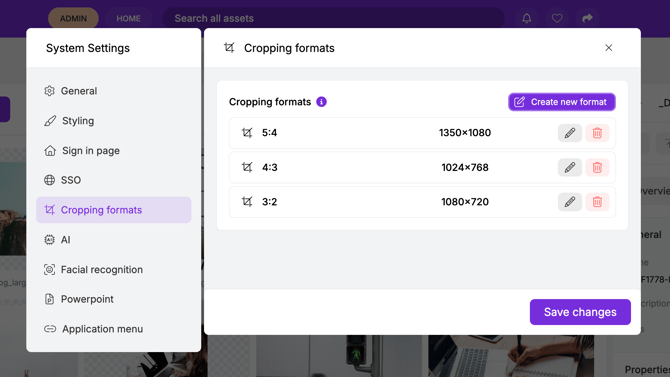
Admins can create predefined cropping formats to ensure images are downloaded in consistent dimensions.
- Open Admin Mode in Pickit.
- Select System Settings from the left-hand navigation.
- Click Cropping formats.
- Click Create new format.
- Enter the pixel dimensions for the cropping format you want to create and a name (for example, aspect ratio, use case etc.)
- Repeat the process for any additional formats.
- Click Save changes.
Use a cropping format when downloading images
Once cropping formats have been created, users can select them when downloading an image.
- Open the image you want to download.
- Click Download.
- Select one of the available cropping formats.
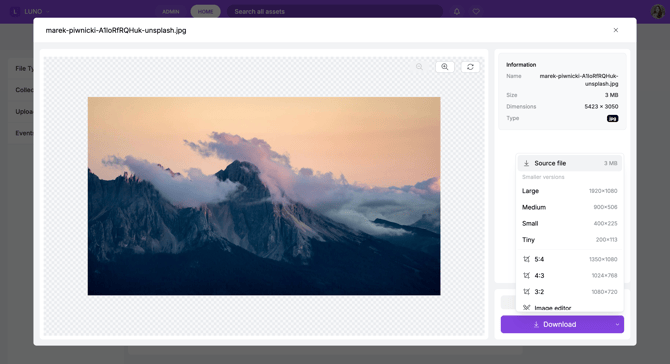
Selecting a cropping format opens the image editor, where you can position and adjust the image within the selected crop area.
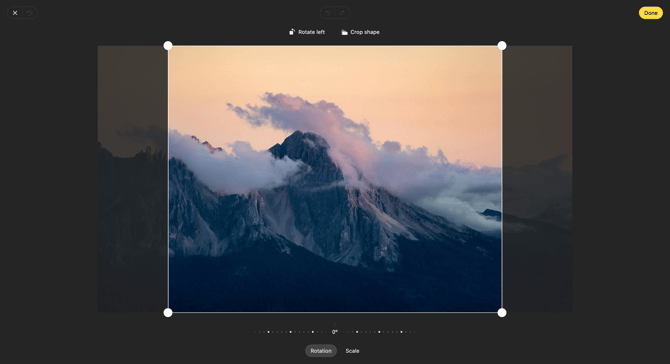
- Adjust the image as needed.
- Click Done in the top-right corner.
The cropped image will be downloaded using the selected dimensions.